
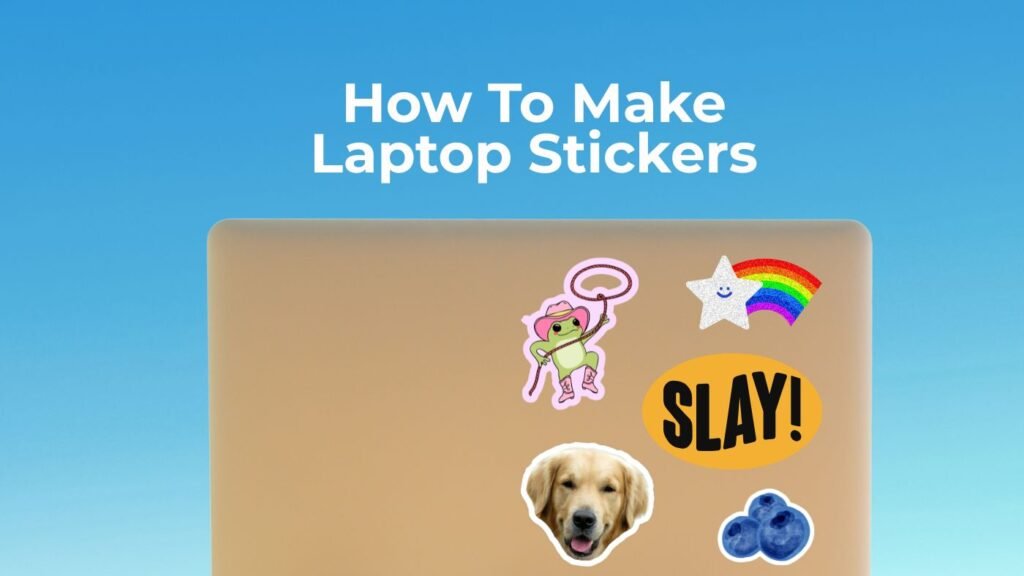
TLDR
- Good laptop stickers need a clear idea, readable artwork, the right size, and a finish that matches the design.
- Simple shapes, bold contrast, and clean borders usually look better on laptops than tiny details or crowded designs.
- Vinyl stickers are usually the best choice for laptops because they handle regular use better than paper stickers.
- Matte finishes feel softer and cleaner. Gloss finishes make colors look brighter.
- Before ordering, check the design at actual size and review the proof carefully.
A laptop sticker has to survive close inspection. It sits right there on the lid, next to other stickers, fingerprints, case edges, and maybe a glowing logo. A design that looked great on a screen can suddenly feel cramped, blurry, or oddly placed once it is printed.
Learning how to make laptop stickers that actually look good comes down to a few practical choices: strong artwork, clean sizing, durable material, and a layout that still looks good from a few feet away. You do not need a complicated design. You need a sticker that reads clearly and feels like it belongs on a laptop.
Start With The Purpose Of The Sticker
Before designing anything, decide what the sticker is supposed to do.
A laptop sticker can be:
- A personal sticker for your own computer
- A logo sticker for a brand
- Artist merch
- A giveaway at an event
- A sticker for a club, team, podcast, or creator brand
- A small product people buy because they like the art
- A packaging extra for online orders
That purpose should guide the design.
A business logo sticker usually needs to be clear and readable. A funny laptop sticker needs the joke to land quickly. An art sticker can be more detailed, but it still needs a strong silhouette. A creator sticker should feel recognizable even if someone sees it across a coffee shop table.
This is where a lot of laptop stickers go wrong. They try to include everything: logo, slogan, website, icon, social handle, tiny character, and background pattern. That can work on a poster. It rarely works on a three-inch sticker.
Pick the main point. Build around that.
How To Make Laptop Stickers That Actually Look Good: Keep The Shape Simple
The shape of a laptop sticker matters almost as much as the artwork.
Simple sticker shapes usually look better because they are easier to understand at a glance. Circles, rounded rectangles, ovals, shields, badges, and clean die-cut shapes all work well.
Custom vinyl stickers are especially good for laptop designs because the cut can follow the artwork. A cat, mountain, coffee cup, logo mark, skull, flower, or mascot can feel more finished when the sticker follows the outline instead of sitting inside a plain square.
But the shape should not get too fussy. Tiny points, thin cutouts, and fragile details can make the sticker harder to peel and easier to damage. A clean outer shape with a slightly thicker border usually looks better and holds up better.
A good rule: if the sticker shape still looks recognizable as a black silhouette, it is probably strong enough.
Choose The Right Size For A Laptop
Laptop stickers usually look best between 2 and 4 inches wide, depending on the design.
Here is a simple size guide:
- 1 to 1.5 inches: small icons, mini logos, sticker sheet pieces
- 2 inches: simple logos, symbols, small badges
- 3 inches: most laptop stickers, character art, text-based designs
- 4 inches: bold decals, large art stickers, statement pieces
- 5 inches or larger: better for big laptop lids, cases, or center placement
For most custom stickers, 3 inches is a safe starting point. It is large enough for detail but not so large that it takes over the whole computer.
The bigger issue is not the sticker size. It is the text size.
If your design includes words, print it out at actual size before ordering. If you have to squint, the text is too small. A laptop sticker often gets seen from an angle, under glare, or from a few feet away. Small text disappears fast.
Use Bold Contrast And Clean Colors
Laptop lids are usually silver, gray, black, white, or dark blue. Your sticker needs enough contrast to stand out on those surfaces.
Strong contrast ideas include:
- White border around dark artwork
- Dark text on a light background
- Light text on a dark background
- Bright accent color against neutral artwork
- Simple two-color logo treatment
- Bold outline around character art
Avoid low-contrast combinations like pale yellow on white, dark navy on black, or soft gray on silver. These can look subtle on screen, but they often disappear once printed and placed on a laptop.
Color also depends on finish. Gloss stickers can make colors feel brighter and sharper. Matte stickers can make the design feel cleaner and less reflective. Neither is always better. It depends on the look you want.
Use gloss when you want color pop. Use matte when you want a softer, more modern look.
Design For The Actual Laptop Surface
A laptop is not a blank artboard. It has corners, curves, logos, vents, seams, and sometimes a textured or coated surface.
Before choosing a size, think about where the sticker will go:
- Centered on the lid
- Upper corner
- Lower corner
- Near an existing laptop logo
- Alongside other stickers
- On a hard laptop case
- On the palm rest area
For most people, the safest placement is on the lid, away from vents, rubber feet, moving parts, and areas that get heavy palm contact.
If the sticker is for a brand giveaway, design it so it works in multiple placements. A sticker that only looks good centered on one laptop may not work as well on a smaller laptop, tablet case, notebook, or water bottle.
That flexibility matters if you are selling or giving away the sticker.
Make Text Readable First
Text-based laptop stickers can look great, but they need discipline.
Use short phrases. Think in sticker language, not paragraph language.
Better:
- Stay Curious
- Offline Mode
- Design Dept.
- Local Legend
- Coffee First
- Built Different
- Tiny Business, Big Plans
Worse:
- A long quote in tiny script
- A full mission statement
- A website, tagline, social handle, and slogan all at once
- Three fonts fighting each other
The best text stickers usually use one strong font and one supporting font. If you need more than two fonts, the design probably needs to be simplified.
Also, be careful with thin script fonts. They can look great at large sizes and become hard to read when printed small. If you want a handwritten look, choose a script with enough thickness and spacing.
Use A Border On Most Laptop Stickers
A border is one of the easiest ways to make a laptop sticker look better.
A white border helps the design stand out on dark, silver, and colored laptops. A colored border can make the sticker feel more branded. A thick border can make small artwork feel more intentional.
Borders also help separate the sticker from the laptop surface and from nearby stickers.
For die-cut laptop stickers, a border around the artwork is usually a good idea. It gives the cut line room to breathe and keeps the sticker from feeling too tight.
You do not need a huge border. But you do need enough space so the cut does not feel like it is crowding the art.
Pick Vinyl Over Paper For Laptop Stickers
Paper stickers can work for notebooks, planners, and temporary use. But for laptops, vinyl is usually the better choice.
Laptops get handled constantly. They slide into bags. They sit on desks, couches, counters, and coffee shop tables. They get touched, wiped, bumped, and exposed to oils from hands.
Vinyl laptop stickers are better suited for that kind of use because they are more durable than paper. A laminated vinyl sticker can help protect the print from everyday scratches, moisture, and wear.
For custom laptop stickers, YouStickers offers durable vinyl stickers with matte and gloss laminate options, which makes them a practical fit for laptop-ready designs.
Choose Matte, Gloss, Clear, Or Holographic Carefully
The sticker finish changes the final look.
Matte Laptop Stickers
Matte stickers have a softer, lower-glare finish. They work well for clean logos, minimalist art, muted colors, and designs that should feel polished without being shiny.
Use matte for:
- Minimalist designs
- Typography stickers
- Neutral color palettes
- Professional brand stickers
- Soft illustration styles
Gloss Laptop Stickers
Gloss stickers feel brighter and more reflective. They can make colors look more vivid.
Use gloss for:
- Bold artwork
- Bright colors
- Mascots
- Event stickers
- Gaming, anime, or pop-style designs
- Designs with high contrast
Clear Laptop Stickers
Clear stickers can look great, but they need the right artwork. They work best when the design has strong contrast and does not rely on white background space.
Use clear stickers for:
- Simple logos
- White laptops
- Glassy or minimal designs
- Small brand marks
- Designs where the laptop color should show through
Just remember that clear areas show the laptop underneath. If the design uses dark text, it may not read well on a dark laptop.
Holographic Laptop Stickers
Holographic stickers are more eye-catching. They work best when the design can handle shine and movement.
Use holographic for:
- Bold icons
- Merch stickers
- Creator stickers
- Fun art
- Limited-edition designs
Do not use holographic if the design already has too much detail. The finish can compete with the artwork.
Use Kiss Cut Stickers When Peeling Matters
Laptop stickers are often handed out at events, included in packages, or sold as small merch items. In those cases, the peel experience matters.
Kiss cut stickers keep extra backing around the sticker. That makes them easier to peel and gives you room for extra branding, a social handle, a small note, or a background shape around the design.
This format is especially useful for:
- Creator merch
- Event giveaways
- Club stickers
- Brand stickers
- Designs with delicate edges
- Stickers that need a cleaner presentation
If you want the sticker itself to follow the artwork, vinyl die-cut stickers are a strong choice. If you want easier peeling and more room around the design, kiss cut is often better.
Consider Sticker Sheets For Multiple Laptop Designs
A single laptop sticker works well when you have one strong design. But if you have several small icons, mascots, phrases, or logo variations, sticker sheets can make more sense.
Sticker sheets are useful for:
- Artist merch
- Brand mini packs
- Clubs and teams
- Event swag
- School groups
- Creator drops
- Matching laptop, phone, and notebook stickers
A sticker sheet also lets people choose how much space they want to use. Someone may not want one large sticker on their laptop, but they might use a few smaller icons.
Keep the sheet organized. Use a clear theme, enough spacing between designs, and a backing layout that looks good on its own.
Use Sticker Packs If You Are Selling Merch
If the goal is to sell laptop stickers as merch, think beyond one sticker. A small pack can feel more complete and easier to gift.
Custom sticker packs work well when you want to sell multiple stickers together or create a retail-ready product. They can also work for creators, bands, artists, schools, events, and brands that want a more finished presentation.
A good laptop sticker pack might include:
- One main logo sticker
- One small icon sticker
- One funny phrase sticker
- One character or mascot sticker
- One limited-edition design
The designs should feel related, but not identical. Think of the pack as a small collection.
Prepare The Artwork Correctly
A good print starts with a good file.
For logos and clean graphics, vector files are usually best. Common vector formats include AI, EPS, SVG, and PDF. Vector artwork can scale without getting blurry, which helps keep edges and text sharp.
For illustrations or raster artwork, use a high-resolution file. PNG and TIFF files can work well if the resolution is high enough and the artwork is clean.
Before uploading, check for:
- Blurry edges
- Tiny text
- Low-resolution screenshots
- Thin lines
- Too many small details
- Poor contrast
- Accidental background boxes
- Cropped artwork
- Misspelled words
This is not the most exciting part of making stickers. But it is the part that prevents disappointment.
Review The Proof Like A Real Customer
Proofing is where you catch problems before the sticker gets printed.
When you review the proof, look at:
- Cut line shape
- Border thickness
- Final size
- Text readability
- Spacing around the design
- Whether the background should be white, clear, or removed
- Any spelling or date errors
- Whether the design feels balanced
Do not only ask, “Is the artwork correct?” Ask, “Will this look good on a laptop?”
That small shift helps. You may realize the sticker should be slightly bigger, the border should be thicker, or the text should be removed entirely.
Laptop Sticker Ideas That Usually Work
Need a starting point? These laptop sticker ideas tend to translate well:
- Simple logo stickers
- Mascot or character stickers
- Funny work-from-home phrases
- Local city or state designs
- Hobby stickers
- Coffee stickers
- Bookish stickers
- Gaming icons
- Music or band-inspired artwork
- Small business brand stickers
- College club stickers
- Outdoor and travel stickers
- Pet illustrations
- Minimal wordmark stickers
- Sticker sheets with small matching icons
The key is to keep each design focused. A laptop covered in stickers can be chaotic in a good way. But each individual sticker still needs to be clear.
Common Mistakes That Make Laptop Stickers Look Cheap
A laptop sticker usually looks bad for one of a few reasons.
Avoid these mistakes:
- Using a blurry image
- Making the text too small
- Adding too many fonts
- Choosing a shape with fragile details
- Forgetting the border
- Using low-contrast colors
- Printing on paper when vinyl would be better
- Making the sticker too large for the design
- Using a screenshot instead of original artwork
- Ignoring the proof
The biggest mistake is trying to make one sticker do too much. Simple usually wins here.
A clean 3-inch sticker with one strong idea will almost always look better than a crowded design with five competing elements.
Quick Checklist Before You Order
Before ordering custom laptop stickers, check this list:
- The design has one clear main idea.
- The sticker is readable at actual size.
- The colors contrast with common laptop colors.
- The shape is clean and not too fragile.
- The border gives the artwork room.
- The material is durable enough for everyday handling.
- The finish matches the design style.
- The file is high resolution or vector.
- The proof has been checked carefully.
If the sticker passes that list, it is probably ready.
Conclusion
Learning how to make laptop stickers that actually look good is mostly about restraint. Use a strong design, keep the shape clean, pick a practical size, and choose a material that can handle daily use.
Laptop stickers do not need to be complicated to work. In fact, they usually look better when they are simple, readable, and made with a clear purpose.
Start with the design. Check it at actual size. Give it a little breathing room. Then order it as a durable vinyl sticker with a finish that fits the artwork.
That is the difference between a sticker that looks fine on a screen and one that actually earns a spot on someone’s laptop.
FAQs
What Size Should Laptop Stickers Be?
Most laptop stickers look best between 2 and 4 inches wide. A 3-inch sticker is a good general size for logos, art stickers, and simple text designs.
Are Vinyl Stickers Good For Laptops?
Yes, vinyl stickers are usually a good choice for laptops because they are more durable than paper stickers and better suited for regular handling, light moisture, and everyday wear.
Should Laptop Stickers Be Matte Or Glossy?
Matte laptop stickers are good for clean, subtle, or professional designs. Gloss laptop stickers are better when you want brighter colors and more shine.
Do Laptop Stickers Need A Border?
Most laptop stickers look better with a border, especially die-cut stickers. A border helps the design stand out and gives the cut line room around the artwork.
Can I Use A Photo For A Laptop Sticker?
Yes, but use a high-resolution photo with strong contrast. Avoid dark, blurry, or crowded photos, especially if the sticker will be small
