
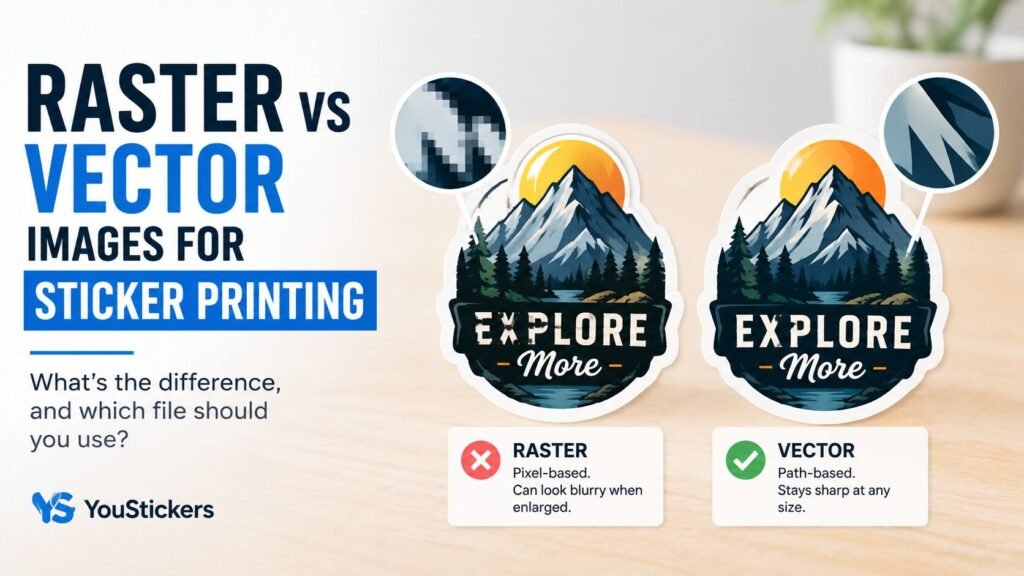
TLDR
- Use vector files for logos, icons, text-heavy stickers, simple illustrations, cutlines, and artwork that may need to be resized.
- Use raster files for photos, paintings, textures, screenshots, digital art, and designs with complex shading.
- Vector artwork stays sharp when scaled because it is built from paths and shapes instead of fixed pixels. Adobe describes vector files as resolution-independent, while raster files are made from pixels and depend on resolution.
- Raster artwork can print well, but it needs enough pixels at the final sticker size. Adobe lists 300 pixels per inch as the standard for high-quality prints viewed up close.
- For sticker printing, the best file is often a mix: vector text, logo, and cutline with high-resolution raster artwork placed inside.
Raster vs vector images for sticker printing is one of the most common file-prep questions because both file types can work, but they do different jobs. A photo-based sticker may need a raster image. A clean logo sticker should usually be vector. A detailed illustrated sticker might use a raster image for the artwork and vector paths for the cutline.
The practical goal is simple: your sticker should print sharp at the size you order, with clean edges, readable text, and a cutline that follows the design correctly.
What Is a Raster Image?
A raster image is made from pixels. Common raster file types include JPG, PNG, TIFF, PSD, and many exported Canva or Photoshop images.
Raster images are best for:
- photos
- paintings
- digital art
- gradients
- texture
- scanned artwork
- realistic illustrations
- complex shadows
- artwork with lots of color variation
The downside is that raster images have a fixed amount of image information. If you enlarge a small raster file too much, it can look blurry, jagged, or pixelated. This is why a logo pulled from a website often prints poorly as a sticker. It may look fine on a screen, but it usually does not have enough pixel data for clean print output.
A raster file can still be great for stickers. It just needs to be created or exported at the correct size and resolution.
What Is a Vector Image?
A vector image is built from mathematical paths, shapes, curves, strokes, and fills. Common vector file types include AI, SVG, EPS, and some PDF files.
Vector images are best for:
- logos
- icons
- badges
- typography
- simple illustrations
- mascots with clean shapes
- QR code stickers
- line art
- cutlines
- solid-color graphics
- designs that need to scale up or down
Adobe explains that vector files can be resized without losing resolution because they are based on mathematical equations rather than individual pixels. That makes vector files especially useful for sticker printing because the same logo can be used for a 2-inch sticker, a 4-inch sticker, or a larger decal without becoming blurry.
Vector is usually the best format for a clean business logo sticker.
Quick Comparison: Raster vs Vector for Stickers
| Feature | Raster Images | Vector Images |
|---|---|---|
| Built from | Pixels | Paths and shapes |
| Common file types | JPG, PNG, TIFF, PSD | AI, SVG, EPS, PDF |
| Best for | Photos, digital art, textures, gradients | Logos, text, icons, cutlines |
| Scaling | Can blur when enlarged | Scales cleanly |
| File size | Can be large at high resolution | Often smaller for simple artwork |
| Print sharpness | Depends on resolution | Usually sharp at any size |
| Cutline setup | Needs vector cutline added | Easier to create clean cutlines |
| Best sticker use | Photo stickers, art stickers, complex designs | Logo stickers, labels, decals, text stickers |
Which Is Better for Sticker Printing?
Vector is better for logos, text, line art, and shape-based designs. Raster is better for photos, painted artwork, and detailed designs with texture.
For most sticker printing, the best answer is not “always vector” or “always raster.” The best answer is: use the format that matches the artwork.
Choose vector when the sticker design has:
- a business logo
- small text
- clean lines
- flat colors
- simple shapes
- a badge or emblem
- a die cut shape
- a QR code
- a design that may need multiple sizes
Choose raster when the sticker design has:
- a photo
- watercolor texture
- airbrush shading
- scanned artwork
- complex gradients
- realistic shadows
- hand-drawn texture
- detailed digital painting
If the design is a photo with a logo on top, use both: a high-resolution raster photo plus vector logo/text elements.
Why Vector Is Usually Best for Logo Stickers
Logo stickers need clean edges. If a logo has tiny letters, sharp corners, thin strokes, or a precise brand shape, vector artwork helps keep it crisp.
A JPG version of a logo is often not enough. JPG files can work for some artwork, but they are raster files. If the logo was downloaded from a website, copied from social media, screenshotted, or saved from an email signature, it may be too low-resolution for printing.
For a logo sticker, try to upload:
- AI
- SVG
- EPS
- PDF with vector artwork
- high-resolution PNG only if vector is not available
A clean vector logo also makes it easier to create a smooth die cut line around the artwork. The cutline should follow the intended shape, not the fuzzy edge of a low-resolution image.
Why Raster Is Still Useful for Sticker Printing
Raster artwork is not bad. In fact, many great stickers are raster-based. Photos, paintings, anime-style art, textures, scanned drawings, and digital illustrations often need raster image data because they contain many subtle color changes.
The key is resolution.
Adobe’s print-resolution guidance lists 300 ppi as the industry standard for high-quality prints viewed up close. Since stickers are usually viewed close up, 300 ppi at the final print size is a good target for most raster sticker artwork.
That means the pixel dimensions need to match the sticker size.
For example:
| Sticker Size | Good Raster Size at 300 PPI |
|---|---|
| 2″ x 2″ | 600 x 600 px |
| 3″ x 3″ | 900 x 900 px |
| 4″ x 4″ | 1200 x 1200 px |
| 2″ x 4″ | 600 x 1200 px |
| 5″ x 5″ | 1500 x 1500 px |
A 500 x 500 pixel image may look decent on a phone, but it is only about 1.67 inches wide at 300 ppi. Enlarging it to a 4-inch sticker will likely make it soft or pixelated.
Why Screenshots Usually Make Poor Sticker Files
Screenshots are usually raster images, and they are often too small for printing. They may also include compression artifacts, fuzzy text, jagged edges, or background clutter.
Screenshots are especially risky for:
- logos
- QR codes
- text
- social media graphics
- website images
- low-resolution product mockups
- artwork copied from a preview screen
A screenshot may help explain what you want, but it should not be the main print file unless it is very high resolution and the final sticker is small.
If you only have a screenshot of a logo, try to find the original logo file instead. Look for an SVG, AI, EPS, or PDF from the designer, website, brand kit, or original artwork folder.
Best File Types to Upload
The best file type depends on what kind of artwork you have.
| Artwork Type | Best File Type |
|---|---|
| Logo | AI, SVG, EPS, or vector PDF |
| Simple icon | SVG, AI, EPS, or vector PDF |
| Photo sticker | High-resolution JPG, PNG, TIFF, or PSD |
| Digital art | High-resolution PNG, TIFF, PSD, or PDF |
| Transparent-background sticker | PNG or vector PDF |
| Text-heavy label | Vector PDF, AI, SVG, or EPS |
| Die cut sticker | Vector file or high-resolution art with a clear edge |
| QR code sticker | Vector PDF, SVG, or high-resolution PNG |
YouStickers accepts uploaded artwork for custom stickers and provides online proofs before production, which is helpful when the file needs a cutline, sizing review, or layout check. For custom logo, merch, laptop, packaging, or event stickers, start with the custom sticker upload flow and use the cleanest source file you have.
Can You Convert Raster to Vector?
Sometimes, but it depends on the artwork.
A simple black logo, icon, or line drawing can often be vectorized cleanly. A photo, watercolor painting, complex digital illustration, or shaded design usually does not convert well into true clean vector art.
Canva’s Vectorize tool, for example, is described as a way to trace images into editable shapes and colors, especially for logos, illustrations, and artwork. That kind of tool can be useful, but automatic vector tracing is not magic. It may simplify details, create rough curves, add too many shapes, change colors, or lose texture.
Vectorizing works best for:
- simple logos
- bold icons
- silhouettes
- flat illustrations
- clean line art
- high-contrast graphics
Vectorizing works poorly for:
- photos
- painterly art
- gradients
- tiny details
- blurry images
- shaded illustrations
- compressed JPGs
If the original file is low quality, vector conversion may not fix it. It may just create a cleaner-looking version of the same bad source.
Raster vs Vector and Cutlines
For sticker printing, the cutline is usually vector-based. A cutline tells the printer where the sticker should be cut.
Even if your artwork is raster, the cutline should be a smooth vector path. This matters for die cut stickers, kiss cut stickers, sticker sheets, and custom-shape designs.
A good cutline should:
- follow the outside shape of the artwork
- avoid tiny jagged details
- leave enough border around the design
- not cut through important text
- be smooth enough to produce cleanly
- avoid overly thin points or fragile areas
Vector artwork makes cutlines easier because the design already has clean paths. Raster artwork can still be used, but the cutline may need to be drawn separately around the image.
How to Tell If Your File Is Raster or Vector
You can often tell by the file type, but not always.
Usually raster:
- JPG
- JPEG
- PNG
- GIF
- BMP
- TIFF
- PSD, unless it contains vector layers
Usually vector:
- AI
- SVG
- EPS
- PDF, if it contains vector artwork
A PDF can be either raster, vector, or both. Saving a blurry JPG as a PDF does not make it vector. It is still a raster image inside a PDF wrapper.
The easiest test is to zoom in closely. If the edges become blocky or pixelated, the artwork is raster. If the edges stay smooth at high zoom, it may be vector.
Practical Recommendation
Use vector files whenever possible for logos, text, badges, QR codes, and clean shape-based sticker designs. Vector artwork gives the printer cleaner edges, easier resizing, and better cutline setup.
Use raster files for photos, digital paintings, textures, and complex art, but make sure the image is high resolution at the final sticker size. Aim for about 300 ppi for close-viewed sticker printing.
For many sticker designs, the best file is a layered or print-ready PDF that includes:
- high-resolution raster artwork where needed
- vector text and logo elements
- vector cutline
- bleed around the design
- safe spacing away from the edge
- transparent background where appropriate
If you are unsure, upload the cleanest version you have and check the proof carefully. A proof can catch obvious sizing, cutline, and layout problems, but starting with a better file usually leads to a better sticker.
Common Mistakes to Avoid
Uploading a small logo from a website
Website logos are often optimized for screen use, not print. They may be too small or compressed for a clean sticker.
Saving a raster image as a PDF and assuming it is vector
A PDF is just a container. If the artwork inside is a low-resolution JPG, the file is still low-resolution.
Enlarging a small PNG too much
A PNG can be great when it is large enough, but it will still blur or pixelate if enlarged beyond its useful size.
Using screenshots as final artwork
Screenshots are usually low-resolution and can contain fuzzy text or jagged edges. Use the original design file instead when possible.
Forgetting the cutline
A sticker file is not only about the artwork. Die cut and kiss cut stickers also need a clean cut path or enough visual clarity for one to be created.
Putting tiny text in raster artwork
Small text prints best when it is vector. If tiny text is baked into a low-resolution raster image, it may print fuzzy.
Ignoring final print size
A file that works for a 2-inch sticker may not work for a 5-inch sticker. Raster quality depends on final size.
FAQs
Is vector better than raster for sticker printing?
Vector is better for logos, text, icons, line art, QR codes, and cutlines because it stays sharp when resized. Raster is better for photos, paintings, textures, and detailed artwork.
Can I use a PNG for sticker printing?
Yes, a PNG can work well if it is high resolution at the final sticker size. PNG files are especially useful for artwork with transparent backgrounds, but they are still raster files and can become blurry if enlarged too much.
Can I use a JPG for sticker printing?
Yes, a JPG can work for photos or detailed raster artwork if it is high resolution and not heavily compressed. JPG is not ideal for logos with sharp edges or small text.
What resolution should raster sticker artwork be?
For most close-viewed stickers, aim for about 300 ppi at the final print size. For example, a 3″ x 3″ sticker should ideally have artwork around 900 x 900 pixels or larger.
Is SVG good for sticker printing?
SVG can be a good format for simple vector artwork such as logos, icons, shapes, and line art. For print production, a clean PDF, AI, EPS, or SVG may all work depending on how the artwork is prepared.
Does converting a JPG to SVG make it high quality?
Not automatically. Vector tracing can help simple logos or line art, but it cannot restore missing detail from a blurry or low-resolution image. A traced file may still need cleanup.
Should sticker text be raster or vector?
Sticker text should be vector whenever possible. Vector text prints sharper, scales better, and is easier to keep clean near the cutline.
What file should I upload if I am not sure?
Upload the original design file if you have it. If not, upload the largest, clearest version available. A vector file is best for logos, while a high-resolution PNG, JPG, TIFF, or PSD can work for photo-based or illustrated stickers.
