
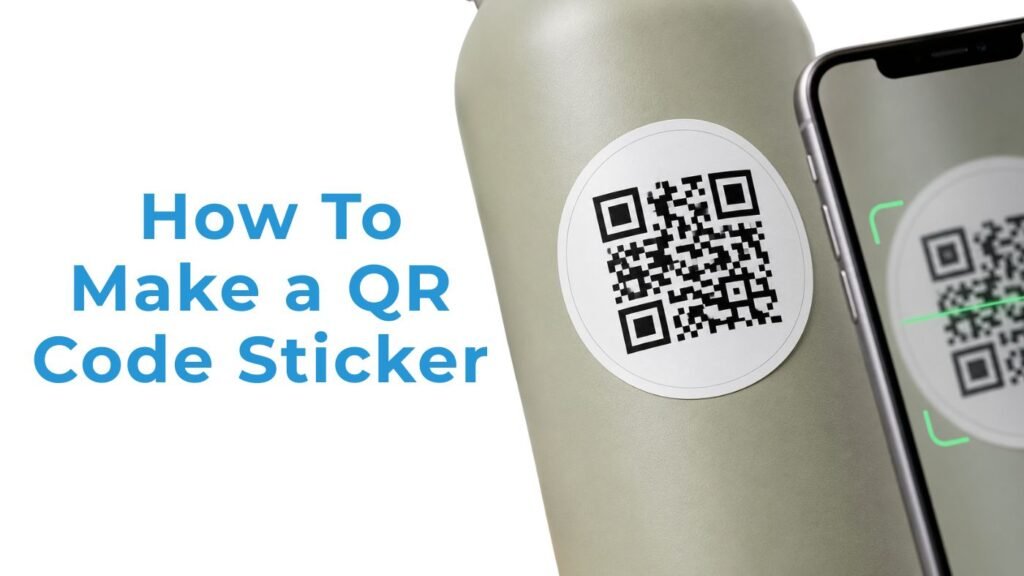
TLDR
- Make the QR code first, test the link, then build the sticker around it.
- Keep the code dark, the background light and the quiet zone clear.
- Use at least a 1 x 1 inch QR code area for most printed stickers.
- Use vinyl or laminated labels for QR stickers that need to handle water, sun or frequent touching.
- Test the printed sticker at actual size before ordering a larger batch.
A QR code sticker fails quietly. Someone points a phone at it, nothing happens and they move on. That is why learning how to make a QR code sticker is really about making a small printed tool that works in normal lighting, on real surfaces and with regular phone cameras.
The process is simple: choose the destination, generate a sharp QR code, give it enough space and print it on the right material. The design can still look branded, but scannability has to win every argument.
Start With The Destination
Before you open Canva or Illustrator, decide where the QR code should send people. Common options include a menu, review page, digital business card, product instruction page, reorder page, event signup, warranty form, playlist or map location.
For most stickers, a URL is the safest choice. It keeps the QR code cleaner and lets the landing page do the explaining.
You also need to choose between a static QR code and a dynamic QR code.
A static QR code stores the final destination in the code. Once it is printed, you cannot change where it points. That is fine for permanent pages, simple personal projects and small batches.
A dynamic QR code usually sends people through a redirect link. The printed code can stay the same while you change the destination later inside the QR platform. That is useful for menus, events, product launches and seasonal campaigns. The tradeoff is that dynamic codes often depend on the QR service staying active and may require a paid account.
Simple rule: use static for small, permanent projects. Use dynamic for bigger print runs or anything you may need to update later.
Generate A Clean QR Code
Use a reliable QR code generator. Canva, Adobe Express, QR Code Generator, QRCode Monkey and Flowcode are common options. The exact tool matters less than the quality of the final file.
Enter the destination and generate the code. Then scan it before you design anything else. This catches broken links, typoed URLs and wrong pages early.
For print, keep the code simple. A dark QR code on a white or very light background is the safest setup. Brand colors can work, but only if the contrast stays strong. Pale colors, busy patterns and low-contrast backgrounds make scanning harder.
If you add a logo to the center, keep it small. Some QR codes can tolerate a little visual interruption, but that is not permission to cover a large part of the code. The more you customize the code, the more you need to test it.
Download the QR code as an SVG, PDF, EPS or high-resolution PNG. Vector files are best because they stay sharp at any size. Avoid screenshots. They may look fine on screen and print blurry.
Choose A Sticker Size That Is Easy To Scan
Tiny QR code stickers can work in perfect conditions, but people do not scan stickers in perfect conditions. They scan from odd angles, under glare, on curved packaging and with older phones.
For most uses, keep the actual QR code at least 1 x 1 inch. If the full sticker includes text, a logo, a border or a custom shape, make the sticker larger so the code itself still has enough room.
Here is a practical size guide:
| Use Case | Suggested Sticker Size | Notes |
| Business card insert | 1 x 1 inch | Keep the design very clean. |
| Product packaging | 1.25 x 1.25 inches | Better for boxes, jars and bags. |
| Event handout | 1.5 x 1.5 inches | Easier for fast scanning. |
| Counter or window sticker | 2 x 2 inches or larger | Good for scanning from farther away. |
| Outdoor or vehicle sticker | 3 x 3 inches or larger | Increase size for distance, glare and motion. |
Do not forget the quiet zone. This is the clear margin around the QR code. Keep text, borders, icons, background graphics and cutlines out of that space. The phone camera needs to see where the code starts and ends.
Design A Scannable QR Code Sticker
Open your design file at the final sticker size. Place the QR code first, then design around it.
The safest layout is simple: QR code in the center, quiet zone around it and a short line of text that says what the scan does. “Scan for menu,” “Scan for setup video,” “Scan to reorder” and “Scan for care instructions” are stronger than a vague “Scan Me.”
Keep the QR code square. Do not stretch it, warp it, rotate it for style or place it across a seam. A custom die cut shape can look good around the code, but the code itself should stay flat and undistorted.
If the sticker will be die cut, leave enough room between the QR code and the cut edge. A tight cutline might look clean in the proof, but it can crowd the quiet zone or make the sticker harder to scan after trimming.
For product packaging, put the QR code on the flattest available surface. Avoid bottle necks, narrow tubes and sharp curves when possible.
Pick The Right Sticker Material
The right material depends on where the sticker will go.
Paper labels can work for short-term indoor uses, office organization or simple mailer inserts. But paper is not the best choice for bottles, outdoor surfaces, product packaging that gets handled or anything exposed to moisture.
For durable QR code stickers, vinyl is usually the better pick. A laminated vinyl sticker can handle more rubbing, water and everyday use than a basic paper label.
You can order custom stickers from YouStickers if you need individual QR code stickers for packaging inserts, laptops, bottles, event handouts or business use. For a durable waterproof option,vinyl stickers are a good fit. If you are applying the same QR code to jars, boxes, bottles or retail packaging, custom labels may be easier to use in quantity.
Finish matters too. Matte laminate usually creates less glare, which can help with scanning in bright light. Gloss laminate can look sharper, but it may reflect light depending on the surface. Test the actual finish before committing to a large run.
Print At Home Or Order Professionally
Home printing is fine for testing, office labels, school projects and small personal batches. Use sticker paper, print at the actual size and cut by hand or with a cutting machine.
The downside is durability and consistency. Home-printed stickers can smudge, fade or peel faster. Alignment can also drift, especially on sticker sheets.
Professional printing is better for waterproof stickers, custom shapes, larger quantities and anything that represents a business. It also gives you a proofing step, which is helpful for catching cutline, spacing and sizing issues before production.
Before you approve a proof, check three things: the QR code size, the quiet zone and the distance from the cut edge.
Test Before You Print A Full Batch
Testing the digital QR code is not enough. Print the sticker at final size and test the physical version.
Stick it on the actual surface. Scan it with more than one phone if you can. Try normal room light, bright light and a slightly awkward angle. If the sticker will be laminated, test after lamination. If it will go on a bottle, test it on the bottle.
Also test the landing page. The code can scan perfectly and still fail if the page loads slowly, looks bad on mobile or sends people to a confusing next step.
Use this checklist before ordering:
- The printed code scans from a normal distance.
- The quiet zone is clear on all sides.
- The code is sharp, not blurry or pixelated.
- The destination opens on mobile.
- The sticker scans on the real surface.
- The instruction text tells people what they get.
- The link is stable or editable if you need future changes.
Common Mistakes To Avoid
The most common mistake is making the QR code too small. The second is crowding it with borders, logos, patterns or text.
Low contrast is another problem. A dark blue code on a black background may match the design, but it will not be friendly to phone cameras. Keep the code dark and the background light unless you have tested the exact printed version.
Avoid linking to a page you do not control. If the page disappears, the printed stickers become useless. For business uses, send the QR code to a stable page on your own website whenever possible.
And do not scan only the file on your monitor. The printed sticker is the real test.
Conclusion
The best answer to how to make a QR code sticker is simple: make the code sharp, give it space, print it large enough and choose a material that fits the job.
For a personal project, printing at home may be enough. For product packaging, event marketing, retail labels or outdoor use, professional vinyl stickers or labels are usually worth it. A QR code sticker only works if people can scan it quickly after it has been printed, placed and handled.
Start with a test. Then print the batch.
