
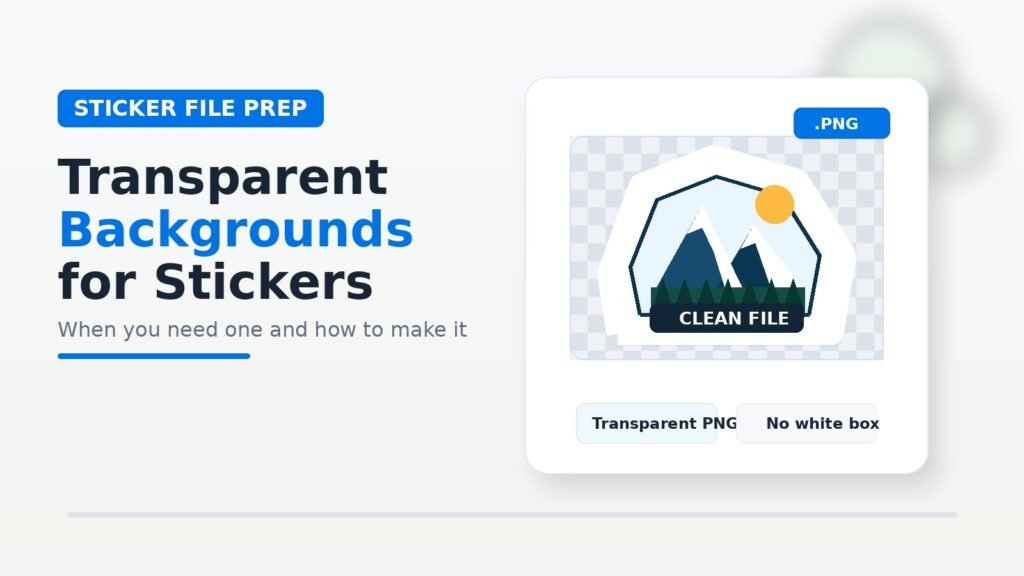
TLDR
- You need a transparent background when you want the sticker shape to follow your artwork instead of printing as a square or rectangle.
- Transparent backgrounds are especially useful for logos, die cut stickers, kiss cut stickers, sticker sheets, clear stickers, and artwork with open space around the design.
- A PNG, SVG, AI, EPS, or PDF can support transparency, depending on how the file is built. A JPG cannot support a true transparent background.
- A transparent background does not automatically mean you are ordering a clear sticker. It only means the empty parts of the artwork file are see-through.
- Before uploading, place your design on a dark background and a light background to check for hidden white boxes, rough edges, or leftover background pixels.
A transparent background is one of the simplest ways to make a sticker file look more professional. Instead of printing your design inside a white square, the sticker can follow the shape of the logo, character, illustration, text, or badge.
But transparent backgrounds can also be confusing. A transparent artwork file is not the same thing as a clear sticker. A PNG with a transparent background is not automatically print-ready. And removing a background badly can leave fuzzy edges, white halos, or tiny leftover pixels that show up in the proof.
This guide explains when you need a transparent background for stickers, when you do not, and how to make one in common design tools.
What Is a Transparent Background?
A transparent background means the empty parts of your image are not filled with white, black, gray, or any other color. Instead, those areas are invisible in the file.
In image terms, transparency is usually handled by an alpha channel. Wikipedia’s overview of alpha compositing explains that pixels can store transparency information, where a value of 0 is fully transparent and a value of 1 is fully opaque. PNG and TIFF are among the common image formats that can support alpha transparency.
In practical sticker terms, a transparent background lets the artwork stand by itself. If your logo is shaped like a mountain, the file can contain just the mountain logo instead of a mountain logo sitting on a white square.
Transparent Background vs. Clear Sticker
This is the most important distinction:
A transparent background is a file setup. A clear sticker is a material choice.
A transparent-background file tells the printer which parts of the design are artwork and which parts should be empty. A clear sticker is printed on transparent sticker material.
You can have:
- a transparent-background file printed on white vinyl
- a transparent-background file printed on clear sticker material
- a full-background design printed on white vinyl
- a full-background design printed on clear material
For example, if you upload a logo PNG with a transparent background and order white vinyl stickers, the unprinted space around the logo will usually become part of the white vinyl sticker border or die cut shape. If you order clear stickers, the unprinted areas can remain transparent.
YouStickers notes that its custom clear stickers are printed with white ink behind the design to help preserve opacity, while also warning that clear stickers can still be translucent and the white ink may not be perfectly opaque.
When You Need a Transparent Background for Stickers
You usually need a transparent background when the artwork shape matters.
Logo Stickers
Most logo stickers should use a transparent background unless the design intentionally includes a solid box, circle, badge, or label shape.
A transparent background helps avoid the classic “logo inside a white rectangle” problem. It also makes the proofing process easier because the cutline can follow the logo or an intentional border around the logo.
Die Cut Stickers
Die cut stickers are cut around the shape of the artwork. A transparent background helps show what the real outside edge should be.
If your die cut sticker file has a white box behind it, the printer may need to guess whether the box is part of the design or just an unwanted background.
Kiss Cut Stickers
Kiss cut stickers can have a custom peel-away shape while staying on a larger backing. Transparent backgrounds are useful when the kiss cut shape should follow the artwork instead of a rectangle.
Sticker Sheets
Transparent backgrounds are very helpful for sticker sheets because each individual sticker needs clear space around it. The printer or designer can see where each sticker starts and stops.
Clear Stickers
Clear stickers often need transparent-background artwork because the whole point is to let part of the surface show through. If the file includes a white square, that area may print or be treated as part of the design depending on the setup.
Artwork With Open Space
Transparent backgrounds are useful for illustrations, mascots, text stickers, badges, icons, and designs with unusual outer shapes. They make the artwork easier to place, size, proof, and cut.
When You Do Not Need a Transparent Background
Not every sticker needs transparency.
You may not need a transparent background when:
- the sticker is supposed to be a rectangle, square, circle, or oval
- the artwork has a full-color background
- the design intentionally includes a white box or solid shape
- the sticker is a product label with a full label layout
- the file is a print-ready PDF with a clear artboard and cutline
- the background is part of the design
For example, a 3″ x 4″ coffee bag label with a cream-colored background does not need a transparent background. A circular candle label with a beige label design does not need one either. In those cases, the full background is part of the printed sticker.
Best File Types for Transparent Sticker Artwork
| File Type | Supports Transparency? | Best Use |
|---|---|---|
| PNG | Yes | Raster artwork, logos, transparent-background images |
| SVG | Yes | Simple vector logos, icons, shape-based artwork |
| AI | Yes | Professional vector artwork and cutlines |
| EPS | Yes | Vector artwork, depending on setup |
| Yes | Print-ready files with artwork and cutlines | |
| TIFF | Yes | High-resolution raster art, less common for simple uploads |
| JPG/JPEG | No | Photos or full-background artwork only |
A JPG cannot contain a true transparent background. If you save a transparent design as a JPG, the transparent area will usually become white, black, or another flat color.
For most customers, a high-resolution PNG with a transparent background is the easiest option. For logos and clean artwork, a vector file such as SVG, AI, EPS, or a vector PDF is often better.
How to Check If Your Background Is Actually Transparent
Do not trust the way an image looks in a preview window. Some apps display transparent areas as white, even when the file is actually transparent.
Use these checks:
- Open the file in a design tool.
- Turn on the transparency grid if available.
- Place the artwork on a dark background.
- Place the artwork on a light background.
- Zoom in around the edges.
- Look for a white box, gray box, leftover pixels, or fuzzy halo.
- Export again if the background appears filled.
A checkerboard background usually means transparency, but not always. Sometimes a screenshot of a checkerboard gets saved into the file, which is not the same as real transparency.
How to Make a Transparent Background in Canva
Canva’s official help page says to choose PNG as the file type and check the “Transparent background” box when downloading a design. Canva also notes that this is a premium feature.
Basic Canva workflow:
- Open your design.
- Remove any background shapes or image fills you do not want printed.
- Select Share or Download.
- Choose PNG.
- Check Transparent background.
- Download the file.
- Reopen it on a colored background to check the edges.
Canva is useful for simple designs, but be careful with small text, low-resolution uploads, and screenshots. If the original logo file is blurry, exporting as a transparent PNG will not make it sharper.
How to Make a Transparent Background in Photoshop
Photoshop is a strong option for removing photo backgrounds, cleaning up artwork edges, and exporting transparent PNG files.
Adobe’s Photoshop guide explains that you can hide or remove the background layer, then use Quick Actions > Remove Background to isolate the subject. Adobe also notes that Photoshop can create a transparent background or masked layer, and recommends refining the mask manually when automatic removal is not perfect.
Basic Photoshop workflow:
- Open the image.
- Unlock or duplicate the background layer.
- Use Remove Background, the Object Selection tool, or a layer mask.
- Zoom in and clean up rough edges.
- Remove leftover white or colored background pixels.
- Keep the artwork on its own layer.
- Export as PNG with transparency.
For sticker printing, do not stop after one-click background removal if the edges look rough. Zoom in close. Clean up hairlines, white halos, and floating pixels around the design.
How to Make a Transparent Background in Adobe Express
Adobe Express has a background remover that can upload JPG, PNG, or WebP images and download the result as a transparent PNG. Adobe says the tool automatically removes the background and creates a PNG file with a clear background.
Basic Adobe Express workflow:
- Upload the image.
- Let the tool remove the background.
- Download the transparent PNG.
- Open the file on a dark and light background.
- Clean up the file in a more detailed editor if the edges need work.
Adobe Express is useful for quick cutouts, but automatic tools work best when the subject has strong contrast against the background.
How to Make a Transparent Background in Illustrator
Illustrator is usually better for vector logos, text, icons, and clean sticker artwork than for photo background removal.
If your artwork is already vector:
- Open the file in Illustrator.
- Delete any unwanted white background rectangle.
- Turn on the transparency grid to check the file.
- Make sure the logo, text, or artwork is still intact.
- Save as AI, SVG, EPS, or PDF.
- Export a PNG only if a raster file is needed.
If your artwork is raster and you want to vectorize it, Illustrator’s Image Trace can help. Adobe explains that Image Trace converts raster images into editable vector artwork and provides presets and tracing options for controlling the result.
However, Image Trace is not perfect. It works best for simple logos, icons, bold artwork, and high-contrast line art. It usually does not work well for photos, subtle gradients, complex textures, or blurry screenshots.
Transparent Backgrounds and White Artwork
White artwork can be tricky on transparent backgrounds.
If your logo is white text on a transparent background, it may look invisible on a white page, white preview window, or white sticker material. The file may be correct, but the preview can make it seem blank.
To check white artwork:
- place it on a black or dark background
- turn on the transparency grid
- confirm the white elements are actually present
- make sure the printer knows the white is part of the design
This matters even more for clear stickers. On clear material, white areas may require white ink. If the printer does not print white ink, those areas may appear transparent instead.
Transparent Backgrounds and Cutlines
A transparent background helps show the sticker shape, but it is not the same thing as a cutline.
A cutline is the path that tells the printer where the sticker should be cut. It is usually a vector path around the artwork. Transparent backgrounds help reveal where the cutline should go, but they do not automatically create one.
A good sticker file should still leave room for:
- a clean border
- a safe zone around important details
- bleed when the design runs to the edge
- smooth edges without tiny fragile points
- enough spacing between stickers on a sheet
If the sticker is a custom shape, the proof should show how the cut will follow the artwork.
Common Transparent Background Mistakes
Saving the file as a JPG
JPG files do not support true transparency. Use PNG, SVG, AI, EPS, TIFF, or PDF instead.
Leaving a white box behind the design
This often happens when someone removes the background visually but leaves a white rectangle layer underneath. Delete or hide that layer before exporting.
Using a screenshot
Screenshots are usually low-resolution and do not preserve true transparency unless they are carefully exported from the original file. Use the original artwork whenever possible.
Forgetting edge cleanup
Automatic background removers can leave rough edges, gray haze, white halos, or leftover pixels. These may show up more clearly when printed.
Confusing transparent background with clear material
A transparent file does not mean the sticker itself will be transparent. Choose clear sticker material if you want the sticker material to be see-through.
Making white artwork invisible
White artwork on a transparent background can be hard to see on screen. Check it on a dark background before assuming it disappeared.
Exporting too small
A transparent PNG still needs enough resolution. If the file is too small, the sticker may print blurry even if the background is removed correctly.
Practical Recommendation
Use a transparent background when you want the sticker to follow the shape of the artwork, especially for logo stickers, die cut stickers, kiss cut stickers, clear stickers, and sticker sheets.
Use a full background when the background is intentionally part of the design, such as a rectangle product label, circle badge, full-color illustration, or packaging sticker.
For most sticker artwork, the safest upload options are:
- vector PDF, AI, SVG, or EPS for logos and clean graphics
- high-resolution PNG with transparency for raster artwork
- layered PSD or PDF when the artwork needs editable elements
- no JPG unless the sticker intentionally has a full rectangular background
Before ordering, test the file by placing it on a dark background, a light background, and the approximate color of the surface where the sticker will be applied. That quick check can catch most unwanted white boxes, hidden halos, and background mistakes before the proofing stage.
FAQs
Do I need a transparent background for sticker printing?
You need a transparent background when you want the sticker shape to follow the artwork instead of printing as a square or rectangle. You usually do not need one when the sticker has a full background or standard label shape.
Is a transparent PNG good for stickers?
Yes, a transparent PNG can be good for stickers if it is high resolution at the final print size. For logos and text-heavy designs, a vector file is usually better.
Can a JPG have a transparent background?
No. JPG files do not support true transparency. If you need a transparent background, use PNG, SVG, AI, EPS, TIFF, or PDF.
Does a transparent background mean the sticker will be clear?
No. A transparent background only describes the artwork file. A clear sticker requires clear sticker material. A transparent PNG can still be printed on white vinyl.
Why does my transparent PNG show a white background?
Some preview apps display transparent areas as white. To check the file, open it in a design tool and place it over a dark background. If the white box is still there, the background was not actually removed.
Should my logo sticker have a transparent background?
Usually, yes. A transparent background helps avoid an unwanted white box and makes it easier for the sticker cutline to follow the logo shape.
Can I upload artwork without a transparent background?
Yes, but the background may be treated as part of the design. If you do not want the background printed or included in the sticker shape, remove it before uploading or make that clear during proofing.
What is the best file type for a transparent sticker background?
For most raster artwork, PNG is the easiest transparent file type. For logos, icons, text, and clean graphics, vector formats like SVG, AI, EPS, or PDF are usually better.

